 feega
Using Feega with Claude Code
How to use Feega next to Claude Code. Install the Feega skill, split the work between the agent and the visual editor, and keep both writing to the same files without stepping on each other.

Claude Code is good at writing a component. It is slow at deciding that a button should be six pixels rounder. Feega is the opposite: it has no AI, and changing a radius is a click. Used together, the agent writes the code and you adjust how it looks, and both of you write to the same files.
This guide shows how to set that up and how to work in it. It is a how-to, not a review of Claude Code, and it claims nothing about how fast or how good the result is.
What you need
- A web project that runs a dev server.
- Claude Code, in a terminal or in the editor.
- Feega: the VS Code extension (id
andreabuttarelli.feega), ornpx feegawith Node 20 or newer.
Feega supports SvelteKit, Vite (React, Vue, Svelte), React Router, Next.js, Nuxt and Astro, with Tailwind, CSS modules, scoped styles or plain CSS. SvelteKit, Vite and React Router projects get the source map automatically. Next.js, and other frameworks such as Nuxt and Astro, need the feega-source-map plugin added to the config.
How we checked
On 22 November 2026 I read the Feega docs page on AI agents, the Feega skill file at plugins/feega/skills/feega/SKILL.md in the repository, the plugin manifest at .claude-plugin/marketplace.json, and the Claude Code docs on skills and plugins.
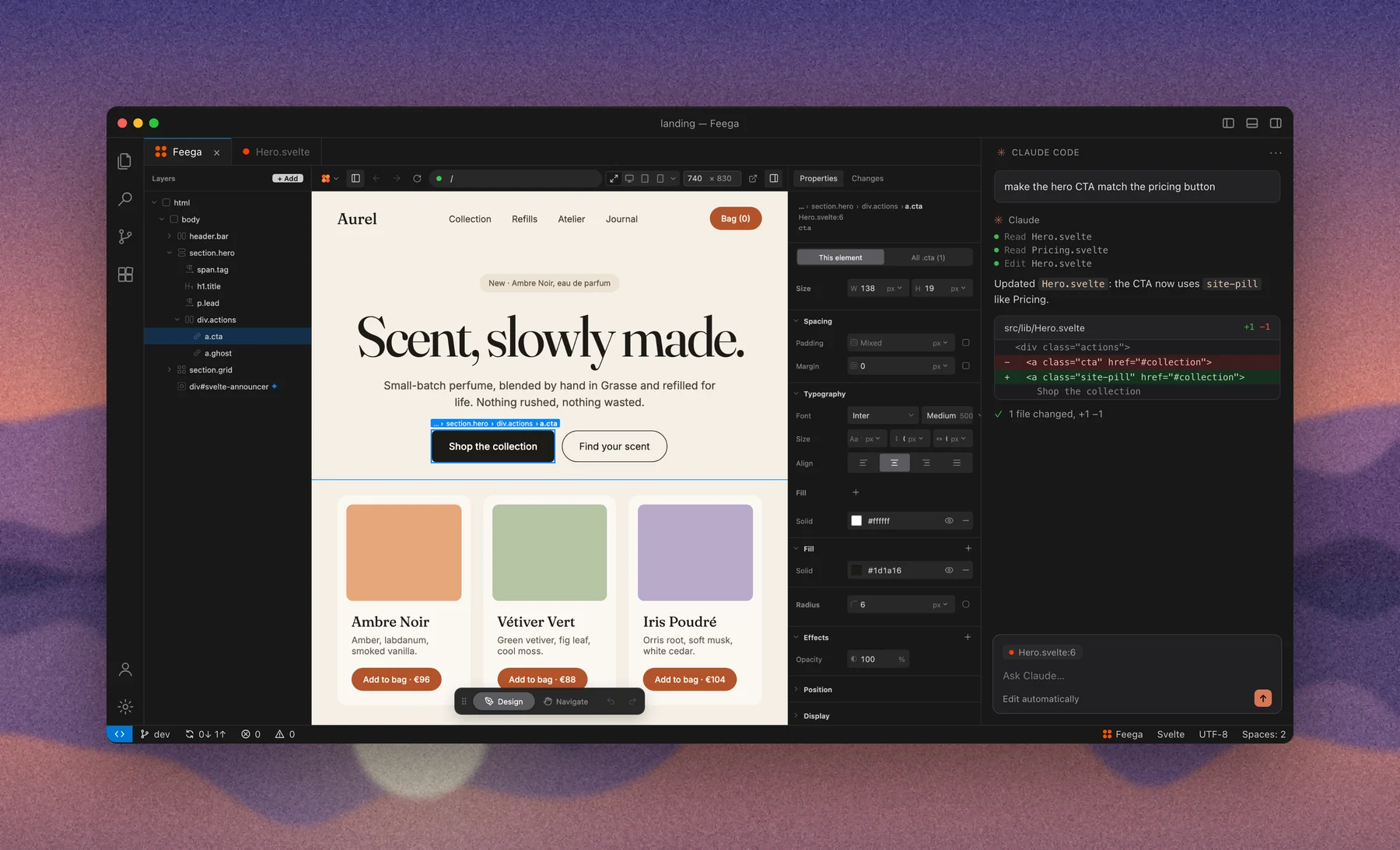
What I did not do: I did not run Claude Code in this session. The install commands below come from those pages, and I could not confirm them against a live Claude Code. The screenshot above is a product screenshot of Feega beside a Claude Code panel. There are no stories here about how someone used it on a client.
Step 1: install the Feega skill
A skill is a folder with a SKILL.md that Claude Code loads when your request matches its description. The Feega skill teaches the agent to set a project up for Feega, start the editor, and write markup that Feega can edit.
The Feega docs give two ways.
npx skills add andreabuttarelli/feegaOr, in Claude Code, as a plugin:
/plugin install feega --marketplace andreabuttarelli/feegaThe Claude Code plugin docs describe the longer form, which is the one to use if the short one is not accepted: add the repository as a marketplace, then install the plugin from it.
/plugin marketplace add andreabuttarelli/feega
/plugin install feega@feega
The repository’s marketplace file names the marketplace and the plugin feega, and points the plugin at the skill folder plugins/feega/skills/feega.
You can also install it by hand. The Claude Code docs say a personal skill lives at ~/.claude/skills/<skill-name>/SKILL.md, and a project skill at .claude/skills/<skill-name>/SKILL.md. Copy plugins/feega/skills/feega there. Commit the project one to share it with your team.
Step 2: let the agent set the project up
Ask in plain words. The Feega docs suggest “set this project up for Feega”, “start Feega” and “build this card so I can tweak it in Feega”.
What the skill tells the agent to do:
- Add the source map where it is needed. For Next.js, wrap the config export with
withFeegaSourcefromfeega-source-map/nextand addfeega-source-maptodevDependencies. For other Vite-based setups, add thefeegaSource()plugin first inplugins. If the config already mentionsfeega-source-map, it changes nothing. - Start the editor with
npx feega, or point you to Feega: Open from current workspace.
npx feega runs until you press Ctrl+C. The skill tells the agent to run it in the background or hand you the command, not to wait on it.
Read the diff the agent produces. Config files are the one place where you want to see exactly what changed.
Step 3: split the work
This is the part that decides whether the pairing feels good. Give each tool what it is good at.
| Task | Who |
|---|---|
| New component, route, data call, state, tests | Claude Code |
| Spacing, size, colour, radius, shadow, type | Feega |
| Changing a word in a heading or button | Feega (double-click the text) |
| Responsive tweaks at phone or tablet width | Feega, with the device bar |
| A dark mode variant of a value | Feega, with the theme menu |
| Rename a class, refactor across files | Claude Code |
| Add a list item to an array | Claude Code, or by hand |
The simple rule: if the change is a number or a colour on something you can see, click it. If it needs logic, ask.
Step 4: write markup both can edit
The skill has rules for the agent, and they are worth knowing, because they decide what Feega can touch.
- Literal class names. Tailwind utilities written as plain strings, not
cn(),clsx()or template strings, on the elements people will tweak. - Variants in the literal. Hover, focus,
md:breakpoints anddark:themes are written to the matching variant, per the state, preview width or theme you choose in the editor. - Words in the markup. Text from props, constants or data is refused with a message. Keep copy a designer changes next to its element.
- Lists over a literal. Items from
{#each},v-foror.mapshare one source line and cannot be reordered one by one. Render a loop over an array literal in the same file so the order is editable at the data. - Icons from supported libraries, such as
lucide-react,lucide-svelte,@heroicons/reactor@tabler/icons-react.
If you want the agent to follow these without being asked each time, say so in your project instructions, or rely on the skill loading when you mention Feega.
Step 5: the loop
- Ask Claude Code for the component: “build a pricing card with three tiers”.
- Open it in Feega. Click the element in the preview. Feega selects the same element in the code editor, and the reverse.
- Adjust spacing, colour and type by hand.
- Feega’s Copy for agent copies the selected element with its source location. Paste it into Claude Code when the next request is about that element: “add a hover state to this”.
- Review. Feega’s edits show up in its Changes tab. The agent’s edits show up in
git diff. Commit between rounds so the two stay apart.
Feega’s history is stored outside your project, and edits you make by hand in the same files are respected: undo does not overwrite them. That is the design for sharing files, but it is also why committing between rounds is a good habit.
An illustrative example
This is an example I wrote to show the shape of the loop. It is not a recording of a real session.
You ask: “make the hero CTA match the pricing button”. The agent reads two files and changes one class name, as in the screenshot above, a one-line diff on a Svelte file:
-<a class="cta" href="#collection">
+<a class="site-pill" href="#collection">
You look at the result, find the corners are too sharp, click the button in Feega and set the radius. Feega writes that into the stylesheet rule that applies. Two writers, two small diffs, and one commit when you are happy.
Limits
- Feega has no AI and does not call Claude. It does not send your code to any model. See the privacy page for what it does send.
- The agent cannot see what you see in the preview unless you tell it or paste the element with Copy for agent.
- Anything the skill says about Claude Code depends on the skill loading. If a request does not trigger it, name Feega in the request.
Pair it with your agent
Install Feega, add the skill, and ask Claude Code to set the project up. Then change something by hand and watch the diff.
Questions
Does Feega use Claude or send code to it?
No. Feega has no AI. It edits your source the way you would. The agent is your own Claude Code.
How do I install the Feega skill for Claude Code?
Run npx skills add andreabuttarelli/feega, or install the plugin from the andreabuttarelli/feega marketplace. You can also copy plugins/feega/skills/feega into .claude/skills/.
Does it work in Cursor or Codex?
The Feega docs say the skill works with Claude Code, Cursor or Codex. I only describe Claude Code here.
What does the agent change in my project?
For Next.js, a wrapper in next.config and a dev dependency. For SvelteKit, Vite and React Router, nothing, because the source map is automatic. After that, only the code you ask it to write.
Can I tell which edits came from Feega?
Yes. Feega lists its own edits in the Changes tab with file and line. Everything else in git diff came from the agent or from you.
Does Feega work with Grok Build?
Grok Build reads skills too. See Using Feega with Grok Build.
Sources
Read on 22 November 2026.
- Feega docs: Use Feega with AI agents
- The Feega skill,
plugins/feega/skills/feega/SKILL.md, and the plugin manifest.claude-plugin/marketplace.jsonin the Feega repository. - Claude Code docs: Skills
- Claude Code docs: Plugins
- Feega docs: Undo and changes